
Ever watched a polished, deeply moving video from a large nonprofit that sold their story so effectively, and wished your smaller org could do the same? You absolutely can. Video is an incredibly powerful tool, yet many nonprofits aren’t harnessing its full potential. The usual culprits are the old non-profit standbys: lack of time and money.
You can create truly impactful videos using free programs you likely already know. I’ll share practical tips for building these videos in PowerPoint or Canva—my go-to, low-effort, high-impact tools from my fundraising days. Then, we’ll dive into inspiring ways to put your newfound skills to work.
Why should you make videos for donors and supporters?
Video isn’t just popular, it’s the heavyweight champ of online content. Recent data from Wyzowl confirms that most marketers turn to video to drive engagement, boost retention, and improve conversion rates. Want more shares and reposts? Video is your answer. Aiming for more leads or website views? Marketers consistently find that video delivers. Need to build stronger brand awareness for your nonprofit? An astounding 96% of marketers who use video say it does exactly that.
If you’re not already using video in your nonprofit communications, it’s time to start. And if you are, fantastic! Let’s explore some easy ways for you to incorporate even more.
How to make donor videos in PowerPoint
Most of us have Microsoft PowerPoint preloaded on our work computers. While it might not be the flashiest tool, it’s already right at our fingertips and familiar to nearly every professional.
- Once you’ve planned out your video, create your slideshow like you would for a presentation.
- To set the tone, add some background music. Be sure you have the necessary rights, or stick to readily available public domain or royalty-free tracks (a quick Google search gets you what you need). Simply drop the audio file onto your first slide and set it to play across multiple slides.
- To add a voiceover, you can use an audio file on your computer or record audio in PowerPoint and add it to the relevant slide.
- Feeling extra fancy? Drop a video in your slideshow. You can use your own video files or link directly from YouTube or Vimeo. Pro tip: steer clear of generic stock videos — your supporters will be able to tell they’re generic from a mile away.
- Timing your transitions is crucial for a smooth feel and comfortable viewing pace. You’ll want to set up automatic transitions between slides. Find this in the ‘Transitions’ tab, deselect ‘On Mouse Click,’ and choose ‘After.’ Then, simply input the desired number of seconds for each slide.
- Test your timing by playing the slideshow. Go back and adjust as needed.
- Save the presentation as a .mp4 file, and you’re done!

How to make donor videos in Canva
Personally, I find Canva shines for video creation. Its design templates feel more modern and fresh, and they’re often a breeze to customize. The drag-and-drop interface is incredibly intuitive, and Canva boasts a wealth of built-in options that aren’t available in PowerPoint.
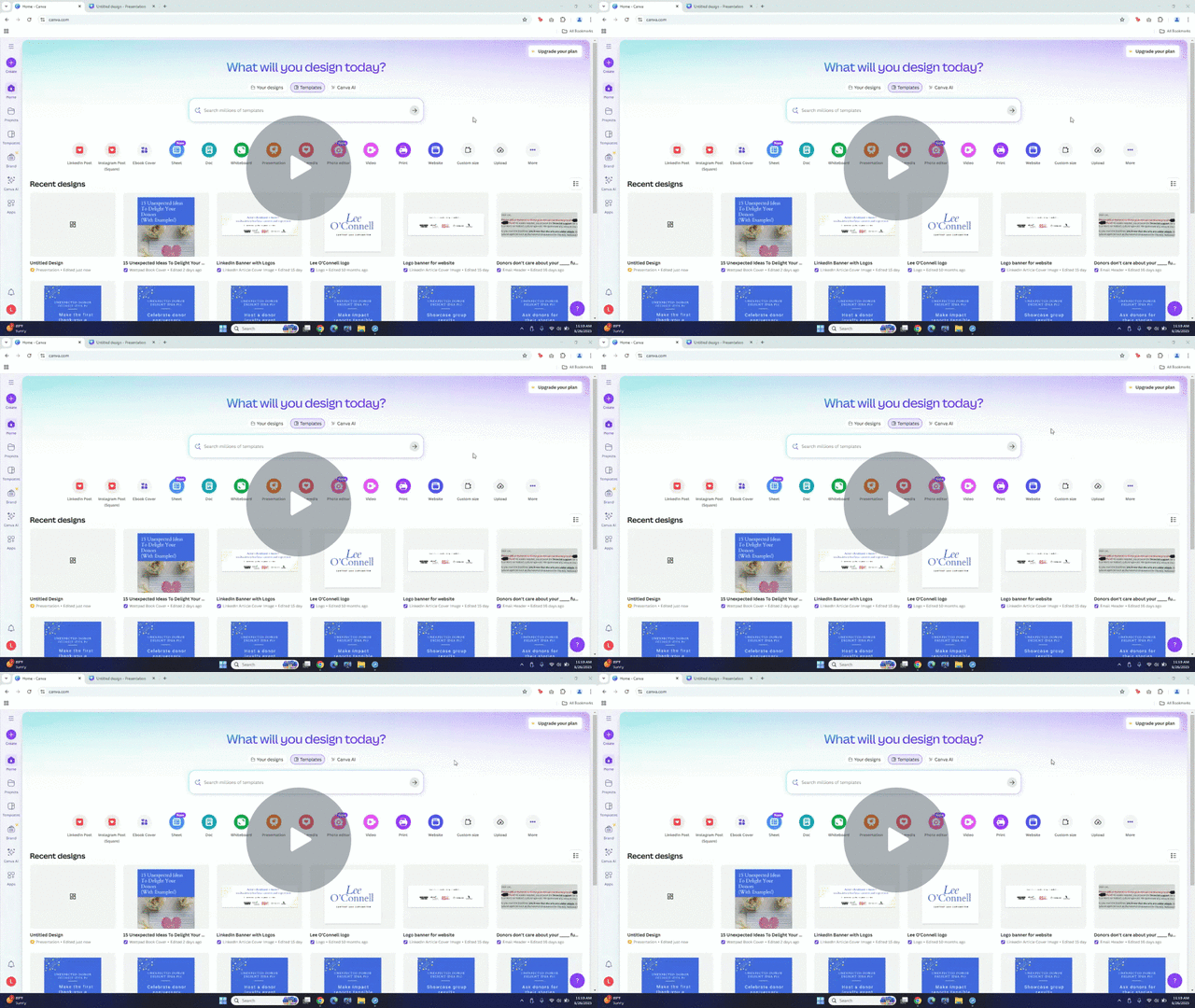
- On the Canva homepage, select “Presentation” from the menu at the top of the screen.
- In the newly opened document, select a template from the Design tab.
- Use the Uploads tab to add your nonprofit’s images, videos, or audio files to customize your slideshow video.
- Head to the Elements tab if you need to add stock photos or videos. That’s where you’ll also find audio files you can use for background music.
- Again, you’ll need to time your slides carefully. Play the slideshow to test your timing and adjust as needed.
- When you’re ready, simply click the ‘Share’ button, scroll to ‘Download,’ and select the .mp4 file. Or, skip the hassle of downloading and generate a ‘Public View’ link. The link allows you to share a direct link for supporters to view your video right in Canva—no large file download required.
Ideas for your nonprofit slideshow videos
Now that you’re armed with the basics for creating a slideshow video, let’s explore some ways you can use your new skills. Many of these ideas are things I used myself when I was in fundraising. They were so simple, and the return was well worth any time I spent creating them.
Quick disclaimer: I’m using the videos below purely as educational examples to spark your creativity. Including them doesn’t mean I endorse the nonprofit behind them.
Donor roll
A super basic way to demonstrate impact with a slideshow video is by creating a donor roll. And you don’t have to limit yourself to donors. You could display a list of volunteers, award winners at your annual gala, or any group you want to appreciate and showcase. It’s a powerful form of social proof that you can tailor to your nonprofit’s goals.
When creating your list, ensure the font size is large enough so that all the names are easily readable. It’s far better to have more legible slides than just a few where names are too small to read. Accessibility is kindness.
Leave enough playtime for each slide so that donors can read through it, find their names, and spot people they know. Check the timing yourself, and then ask a few coworkers to do the same. See if they were able to go through all the names within the allotted time.
(No example for this one for privacy reasons)
Campaign recap
Just wrapped up a big campaign? Video is a fantastic way to showcase your accomplishments. Share statistics about how much you raised, what that money can do, how many people donated, and any other interesting information you want to convey. If you held an event as part of your campaign, show photos.
And if donors left lovely comments on social media or your donor wall, share a few of those, too. These comments powerfully highlight your campaign as a communal achievement, where people united to champion your cause. Showcasing this community support allows everyone to celebrate their collective impact.
Videos are also perfect for highlighting milestones, before-and-after transformations, or ongoing progress updates. Engaging visuals keep supporters invested, especially in long-term projects. When progress feels tangible through video, it’s much easier to secure continued support.
Southern Pines Animal Shelter’s #GivingTuesday recap is a prime example of effective simplicity. In under a minute, their video delivers:
- A heartfelt thank-you
- Adorable photos of the animals benefiting from donations
- A warm message directly from their staff
- An exciting announcement: they exceeded their goal, complete with the total raised
Because the video was so straightforward, staff could swiftly send it to inboxes the day after the campaign wrapped, right when donor interest was highest and they’d be eager for updates.
Thank you from beneficiaries
If you’re fortunate enough to have photos, notes, or drawings from your beneficiaries, a video slideshow is the perfect canvas to stitch them all together. You’ll deliver a heartwarming, feel-good package for your donors.
Harlem Gems Head Start did an incredible job making this basic slideshow video feel like a traditional interview video. The video features a simple slideshow of photos of children from the preschool. They layer the images with voiceovers from the principal and parents discussing the school’s impact. The budget was small, but the effect is enormous.
Thank you from staff
You might be thinking, ‘But I can’t show my beneficiaries for safety reasons, so those photos or documents aren’t an option.’ No worries at all! You have a powerful secret weapon right at your fingertips: your phenomenal staff.
Show pictures of your staff or share notes from them. Highlight what they’ve worked on throughout the year. Let them share what made them proud and what they’re excited about. And have them stress how your supporters helped make those accomplishments possible. Their contributions don’t just put a face to your thank-yous. They humanize your vital work for donors and make it concrete.
Pet Community Centers reminds donors, “You were there” every day as staff did the organization’s work. The video stitches together simple videos of staff members sharing one sentence about the work they do. It’s a brilliant approach that humanizes the nonprofit while sharing more about its work. They don’t just care for animals– they answer questions, pick up patients, and more.
You can easily replicate this approach by filming your team on a phone and compiling the videos into a slideshow.
Year in review
Create a year-in-review video by pulling favorite photos from your nonprofit throughout the year. Highlight your key statistics, project updates, program launches, or any other achievements you’d like to celebrate with your supporters. You could also include the total volunteer hours spent and what those volunteers accomplished.
Triple F Empowerment didn’t just list the experiments children tackled throughout the year. Instead, their simple picture slideshow video brought the kids’ learning to life, showcasing them in action and weaving in powerful quotes about what they learned or enjoyed.
Beneficiary quotes are a powerful addition to any supporter video, and they’re something you’ll want to time carefully. Some of the quotes in this video fly past too quickly.
Grant and sponsor impact
Reporting back is just as crucial for institutional donors as it is for individual ones. Sometimes, it’s even required (*ahem* grant reporting). But instead of a stale grant report or a glossy, logo-heavy one-pager, imagine wowing your funders with a dynamic impact video.
Salem Friends of Felines made a phenomenal grant impact video, even though it was only a simple slideshow. They showed before-and-after pictures of cats they helped with the grant money. They also included images of social media posts they made tagging PetCo, and even photos of cats posing with a sign thanking the funder. What corporate donor can resist two fluffy white kittens batting a sign with their name and logo?
Program summary
Give a zoomed-out view of your organization and what it does with a program summary video. Pair engaging photos with concise, topline information about your various programs. For many nonprofits, this offers a captivating capsule view of all your organization does to serve its mission. It’s a wonderful way to showcase your full range of programs and their collective impact, with versatile applications for diverse supporters.
Bat World Sanctuary combined several video genres in their “Faces of Rescue” video. They thanked donors with beneficiary stories. But they also provided high-level information about the services they offer, including bat rescue, reunification, and educational services. As a bonus, they added statistics about the number of bats they helped and the number of staff members it took to care for them. I never would’ve thought of bats as cute before this video, but it converted me.
Budget and capacity don’t have to keep you from making excellent impact videos
With free software and only an hour or two, anyone on your staff can create a high-quality, heartfelt impact video your supporters will genuinely love. Forget the need for fancy editing software, expensive production teams, or complicated scheduling. Video is a critical investment in the people who power your organization and its mission—and it’s absolutely bound to pay off.
Looking to craft inspiring communications that keep supporters coming back for more? As a nonprofit content copywriter with 10 years of experience, I specialize in creating pieces that do just that. Contact me explore how we can elevate your message together!
Never miss a post. Subscribe to get the latest straight to your inbox.
Leave a Reply